
TLS Inspection for DMZ Azure Application Gateway & Azure Firewall - certificate options, issues and limitations
If the title of this article isn’t long enough then the rest of the blog post will make up for it, because there’s a lot to cover.
I recently worked with a customer that wanted to deploy a conventional DMZ environment architecture in Azure using Azure Application Gateways and Azure Firewall, leveraging the various security features of Azure Firewall Premium SKU but specifically TLS Inspection for in-bound HTTP(S) traffic.
This article specifically describes my challenges with configuring TLS Inspection in an enterprise environment.
UPDATED on 19th May 2024 after receiving a few comments and questions about Let’s Encrypt and managed private PKI.
Architecture
We’ll be using a specific architectural scenario, which is the Zero-trust network for web applications with Azure Firewall and Application Gateway, where the Azure Application Gateway sits in front of the Azure Firewall. The HTTP(S) traffic passes through those devices before getting to the backend services (API Management, App Service etc).

When looking at the end-to-end TLS connection between the user and the backend service, the following occurs:
- The user’s browser establishes a TLS connection to the Azure Application Gateway, which has a certificate configured as part of its HTTP(S) Listener. Termination of the TLS connection on the Azure Application Gateway allows it to perform Web Application Firewall (WAF) traffic inspection.
- The Azure Application Gateway creates a new TLS connection to the “backend” via the Azure Firewall. Termination of the TLS connection on the Azure Firewall allows it to perform TLS Inspection.
- The Azure Firewall creates a new TLS connection to the backend service.
To decrypt and inspect TLS traffic, Azure Firewall Premium dynamically generates certificates and presents itself to the Application Gateway as the web server. The Azure Firewall has to use an CA certificate to sign the certificates that it generates.
The certificate used by Azure Firewall for TLS Inspection has very specific requirements.
Options
There are 4 options when configuring Azure Firewall with a CA certificate to be used for TLS Inspection, according to the official Microsoft documentation Azure Firewall Premium Certificates:
- Create your own self-signed certificate
- Use your enterprise PKI to create an Intermediate CA certificate
- Certificate auto-generation (via the Azure Portal)
- Purchase a managed private PKI
I’ll go through each option, discuss some Pros and Cons, identify some limitations, and talk about some of the issues I encountered.
Option 1 - Create your own self-signed certificate
For Dev/Test environments, Microsoft suggest creating a self-signed sertificate using OpenSSL and their provided config file with either the Bash or PowerShell script to generate root CA and intermediate CA certificates that you can then use on the Azure Application Gateway and AzureFirewall resources (respectively).
OpenSSL command-line?! What about Terraform?
I’m glad you asked, because I spent a fair amount of time on this.
First of all, I tried using the azurerm_key_vault_certificate resource but eventually discovered that the azurerm provider - or rather the Azure SDK - does not support the Basic_Constraints attribute required for the certificate, which is used to set the is_ca_certitifcate and pathlength properties. These certificate attribute properties are required to allow the Azure Firewall to issue temporary certificates for the TLS connection created by the Application Gateway.
After engaging Microsoft Support, they provided confirmation from the Azure Key Vault product group that there are currently no plans to support these features in the Azure SDK.
“Don’t worry!”, I hear you cry, “You can use the Hashicorp TLS provider instead.”
Yes and no… The self_signed_cert and locally_signed_cert resources do have a is_ca_certificate property, BUT they do not support the required pathlength property. In fact, there is an outstanding, and slightly confusing, enhancement request to add max_path_length in tls_locally_signed_cert to Hashicorp’s TLS provider.
What about Let’s Encrypt?
Unfortunately, Let’s Encrypt can only issue X.509 certificates to enable HTTPS on websites, they do not issue intermediate CA certificates.
Summary:
PROs:
- Good for Dev/Test environments
- Good if you’re happy managing private keys and certificate lifecycle from the command-line using OpenSSL
CONS:
- Not a fully integrated IaC experience
- Requires additional automation to manage the certificate lifecycle
- Not recommended for Production environments
Issues:
- Neither the azurerm_key_vault_certificate, self_signed_cert or locally_signed_cert resources currently support creating the required intermediate CA certificate
Option 2 - Use your enterprise PKI to create an Intermediate CA certificate
For Production environments, Microsoft recommends deploying a certificate issued from your enterprise PKI. That is fine, so long as it complies with Microsoft’s certificate requirements and your enterprise security standards.
The latter was an issue for the customer I was working with because they DO NOT issue Intermediate CA certificates directly from their root CA. In fact, this was the certificate chain that was initially issued to the DMZ Azure Firewall;
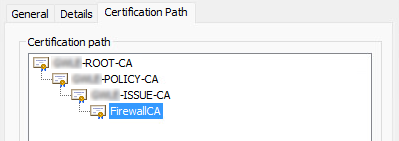
Initial suggestions by Microsoft Support were to bundle the certificate chain to uploaded to the Application Gateway, but this did not work. They later confirmed with the Azure Firewall and Application Gateway product teams that you can only upload a single certificate, meaning the certificate chain has to be no more than one level, i.e. a single root CA certificate or a root & intermediate CA certificate.
Summary:
PROS:
- Good for Production environments
- Certificate is managed by existing operational and security processes
CONS:
- Only works if your enterprise security standards permit the issuing Intermediate CA certificates directly from your root CA
Issues:
- You can only use your enterprise PKI if the Intermediate CA certificate is issued directly from your root CA, or you use the root CA.
Option 3 - Certificate auto-generation
The Azure Portal allows you to auto-generate the required Managed Identity, Key Vault and Self-Signed Certificate on your Azure Firewall. This also includes a certificate issuance policy that will auto-renew the certificate, minimising certificate management for your security operations team.
The obvious drawbacks of this are that “vanilla” resources are created, without any of the standard operational and security configuration that your organisation may normally apply when deploying these resources, such as naming convention, Service / Private Endpoints, Certificate Contacts, Diagnostic Settings etc. So, you have to retrospectively add these modifications afterwards.
Summary:
PROS:
- Correct certificate is generated for use with Application Gateway and Azure Firewall
- Certificate will auto-renew, minimising management by security operations team
CONS:
- Resources are created with names that may not comply with your enterprise resource naming standard
- Resources are created with configuration that may not comply with your enterprise configuration and security standards
- Certificate cannot be exported for re-use elsewhere
Issues:
- The valid certificate created via the Azure Portal cannot be exported, or replicated using automation as it is not supported by the Azure SDK.
Option 4 - Purchase a managed private PKI
I’ve added this option as I had ommited it from the original article. I did discuss it with the customer but they decided against it - for the time being - as it would’ve required a load of effort from a procurement and service management perspective, as well as having to align with, or at least consider, the enterprise strategic approach to PKI, and so did not align with the project timescales.
Essentially, this option involves purchasing a managed private PKI service, such as the one from GlobalSign. This would theoretically give you a root and intermediate CA, which you could configure on your Application Gateway and Azure Firewall (respectively).
To be honest, I have not fully explored how this would technically work and there are a number of questions I didn’t have time to answer:
- Would GlobalSign issue the root CA but then you use that to issue the intermediate CA?
- Could this leverage the native Key Vault integration with Certificate Authorities?
- How much would such a service cost, and is it value for money for this specific use case? It sounds like a service that might cost a lot to procure.
Summary:
PROS:
- Provides a managed enterprise PKI service
CONS:
- May conflict with, or require alignment with, your enterprise PKI strategy
- Will require time to go through procurement and service management processes
- Potential high-cost for this specific use case
Wrap-up
Unfortunately, I don’t have a recommended one-size-fits all solution to this. All I can give you is some general guidance, and hope that some of what I’ve learned above will save you wasted effort in trying to implement a solution that is not supported or will not technically work.
My guidance is that you generate the Intermediate CA certificate using one of the following techniques, in order of preference:
- Use your enterprise PKI if:
- It conforms to your enterprise security standards, and
- The resulting certificate adheres to Microsoft’s certificate requirements.
- Use Microsoft’s config & script(s) for creating a self-signed sertificate if:
- You need to automate the creation of the certificate
- Your enterprise security team sign-off on the risks of this approach
- Use the Azure Portal if:
- You’re not bothered about automating the certificate and the associated resources
- Your enterprise security team sign-off on the risks of this approach
Conclusion
I hope this will be of help to you. Let me know if you have any suggestions for improvements in the comments.